Bid Insights
Related information
 Related topics
We've introduced Bid Insights, a powerful new tool that identifies similar projects and provides suggested subcontractors and bids for each bid package. Similar projects are identified based on key attributes, such as market segment and project size, while estimated bid amounts for each subcontractor are calculated using historical bid data. These insights enable smarter comparisons and more informed decision-making.
Key benefits
-
View trends in subcontractor bidding across similar projects.
-
View the suggested bid amount, which is calculated using historical bids from similar projects. These values can be normalized to account for market fluctuations, regional cost differences, and other factors, using custom or standard cost indexes.
-
Flag high or low bids for further questioning before awarding.
-
Make data-driven selections with confidence.
How it works
Create a cost index
Cost indexes are used to track changes in the cost of goods and services over time and regions. The cost indexes imported in Sage Estimating (cloud), formerly Sage BidMatrix, are used in the Bid Insights feature to normalize subcontractor historical bids based on market fluctuations, regional cost differences, and other factors.
To create a cost index, go to Libraries > Cost Indexes and select Add Cost Index. You have the option to create a custom cost index or use the existing CPI All or CPI Regional cost indexes.
Publish eligible projects
Admins and Librarians can now publish projects to mark them as valid and usable for recommendations and analysis. Bid Insights leverages published projects that it considers relevant to suggest similar projects, subcontractors, and bids, as outlined below. This enhancement ensures cleaner data and smarter recommendations in Bid Insights.
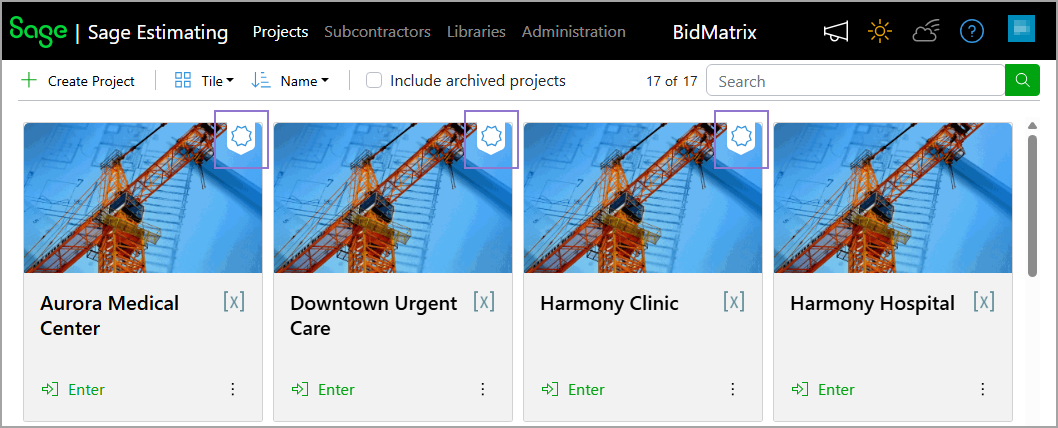
To publish a project, select the appropriate project on the Projects page and select Publish in the project information pane. A bookmark icon at the top-right corner of a project's tile indicates its published status, making it easy to distinguish between published and unpublished projects.
Specify insight parameters when creating or updating projects
In the Create Project wizard, there's a new Insights step where Sage Estimating (cloud) provides a list of similar projects. These projects can be used to generate suggested subcontractors and bid insights. In this step you can:
-
Add, edit, or remove the conditions for matching similar projects.
-
Review and refine the list of similar projects to use to generate the suggested subcontractors and bid insights.
- Select to include in the bid matrices subcontractors likely to participate, based on their involvement in similar projects and other heuristic-based criteria.
- Specify one or more cost indexes to use to normalize past subcontractor bids for the bid insights.
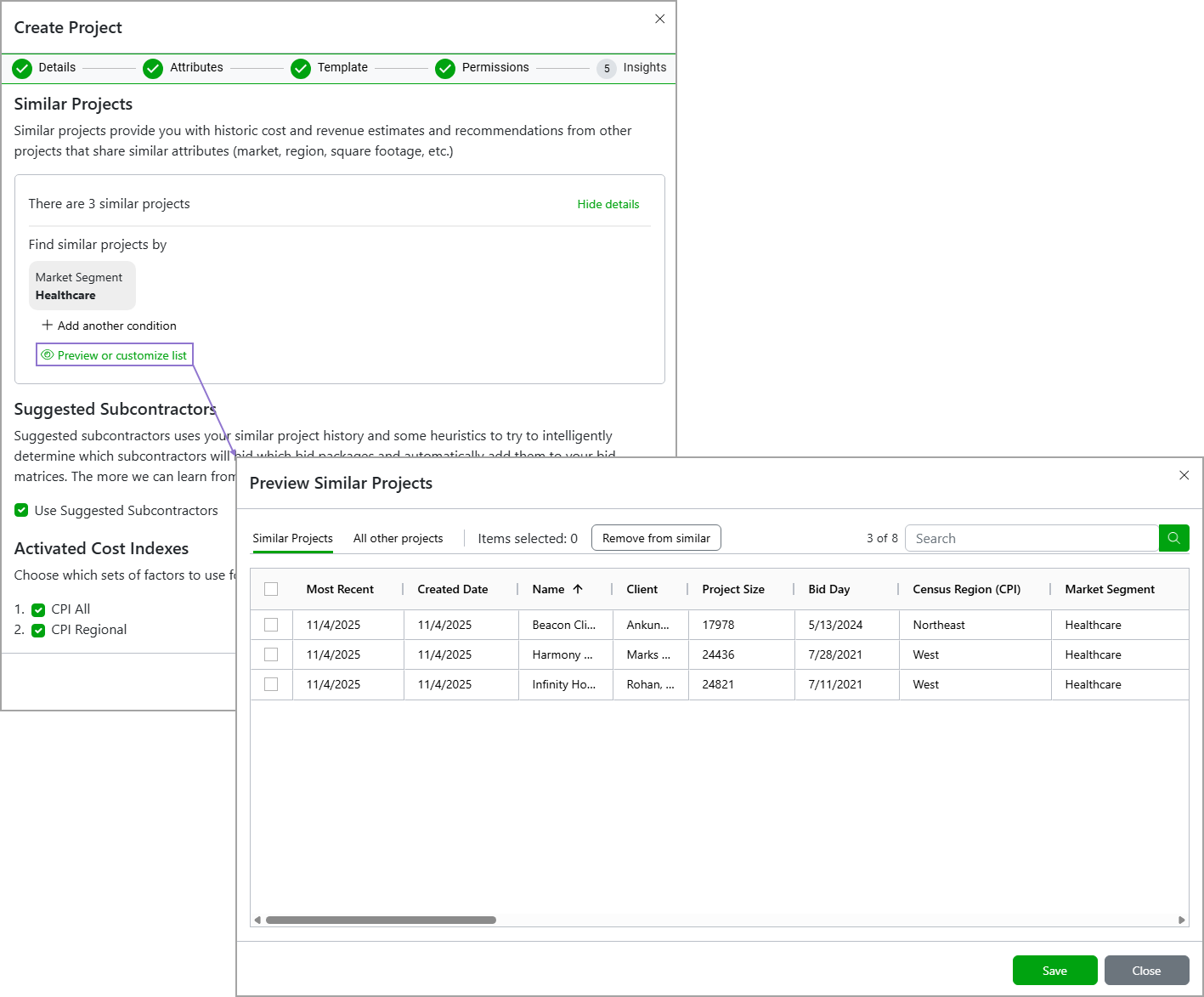
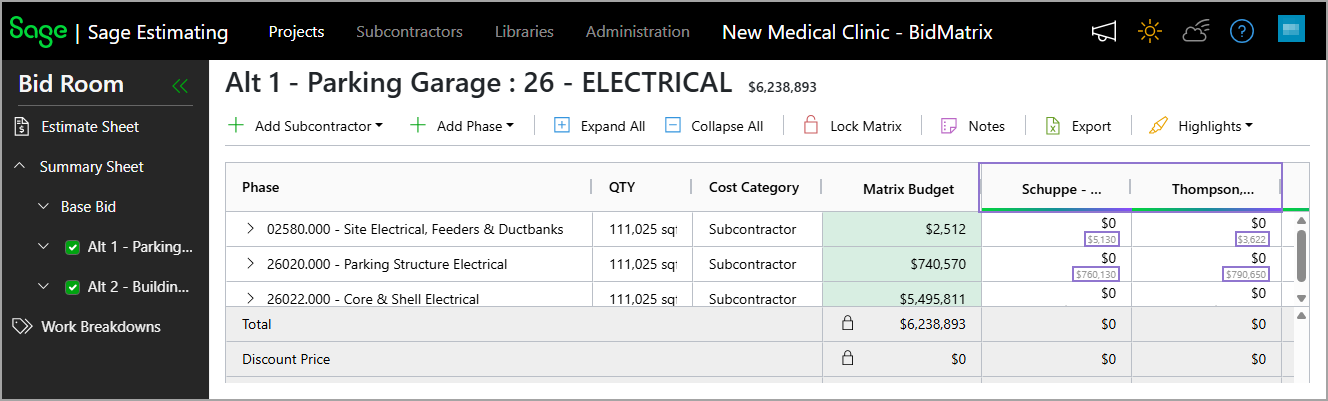
If a subcontractor has bid the same package on three or more projects within the similar projects selection, they’ll automatically be added to the corresponding bid package matrix. In addition, if the subcontractor had previously bid on the same package phase, a suggested bid value will appear in the relevant phase. This suggested bid value will be displayed in gray font at the bottom of the cell.
View Bid Insights for bid packages
We've introduced the Bid Insights section in bid packages matrices to help you evaluate subcontractor bids based on their bids in similar projects. This feature provides a bid insight for each subcontractor based on historical bid data, enabling smarter comparisons and more informed decision-making.
To display the Bid Insights, select the cell next to the desired bid package phase under the corresponding subcontractor.
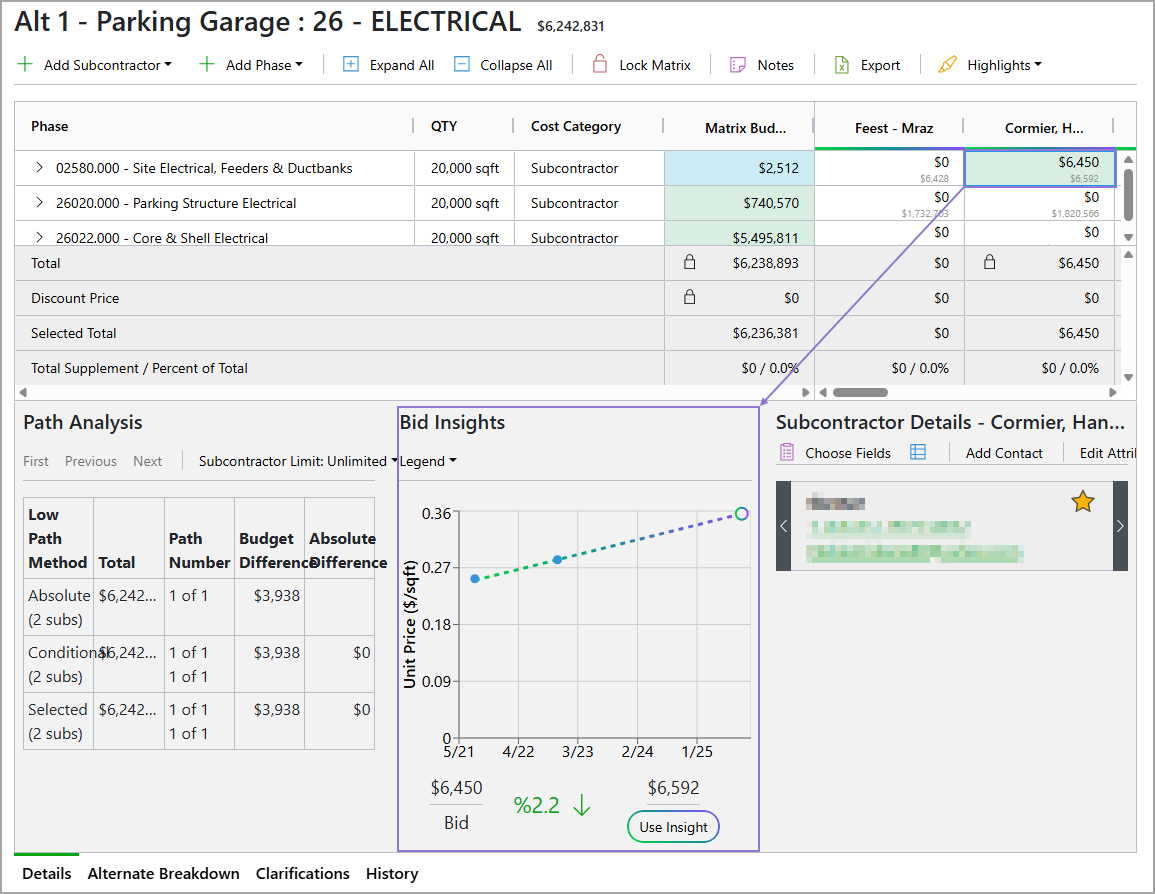
In the Bid Insights section, the subcontractor's actual bid amount for the bid package phase is displayed on the left and the bid insight amount on the right. The value between them shows the percentage difference between the two.
The percentage difference between the actual bid and the bid insight amount helps you to assess quickly how closely the bid aligns with the estimated amounts. Specifically:
-
If a bid is up to 10 percent higher or lower than the suggested amount, the percentage difference is shown in green.
-
If a bid is between 10 and 25 percent above or below the suggested amount, the percentage difference is shown in yellow.
-
If a bid is more than 25 percent higher or lower than the suggested amount, the percentage difference is shown in red.
The graph provides a clear visualization of the subcontractor's bidding activity. By default, phase budgets from historical bids appear in blue, while bid insights are shown as a dotted line to highlight trends. You can customize the display using the Legend dropdown to show subcontractor bid amounts in purple and awarded bids in green.
The following details display if you hover over a point on the graph:
-
Project name
Select the project name on the dialog to open the project's Summary Sheet.
-
Size
-
Location
-
Bid date
-
Indexed amount
You can select Show Cost Breakdown on the dialog to display the following information:
-
Actual and indexed phase budget, bid, and awarded amounts.
-
All the cost indexes that have been selected for the project. The index used for normalization appears in green. Selecting it opens the Cost Indexes page in a new tab, with the value that was used for normalization highlighted.

Optionally, to set the bid insight amount for the selected bid package phase as the actual bid, select Use Insight under the bid insight amount.