Summary Sheet enhancements
Related information
 Related topics
We’ve enhanced the Summary Sheet by integrating Estimate Sheet functionality and adding several usability improvements, creating a faster, more flexible, and more intuitive estimating experience.
Estimate sheet integration
All estimate information is now fully integrated into the Summary Sheet, including individual items and their detailed cost breakdowns. From the Summary Sheet, you can add or modify items, adjust budget amounts, and make other estimate changes, all in one place.
By default, the Summary Sheet displays the same estimate columns previously shown in the Estimate Sheet, followed by the Bid columns. Bid columns are visually distinguished with a darker gray background in the column headers to make them easier to identify. With all columns consolidated into a single sheet, you can create custom layouts to show only the columns you need, organized and sorted to match your workflow.

View and add items
You can now view and add items directly on the Summary Sheet, making it easier to build and modify your estimate without leaving the main view.
-
To view items for a specific phase on the Summary Sheet, expand each level of the hierarchy.
Alternatively, select the expand all icon (
 ) to view all items across the Summary Sheet at once.
 -
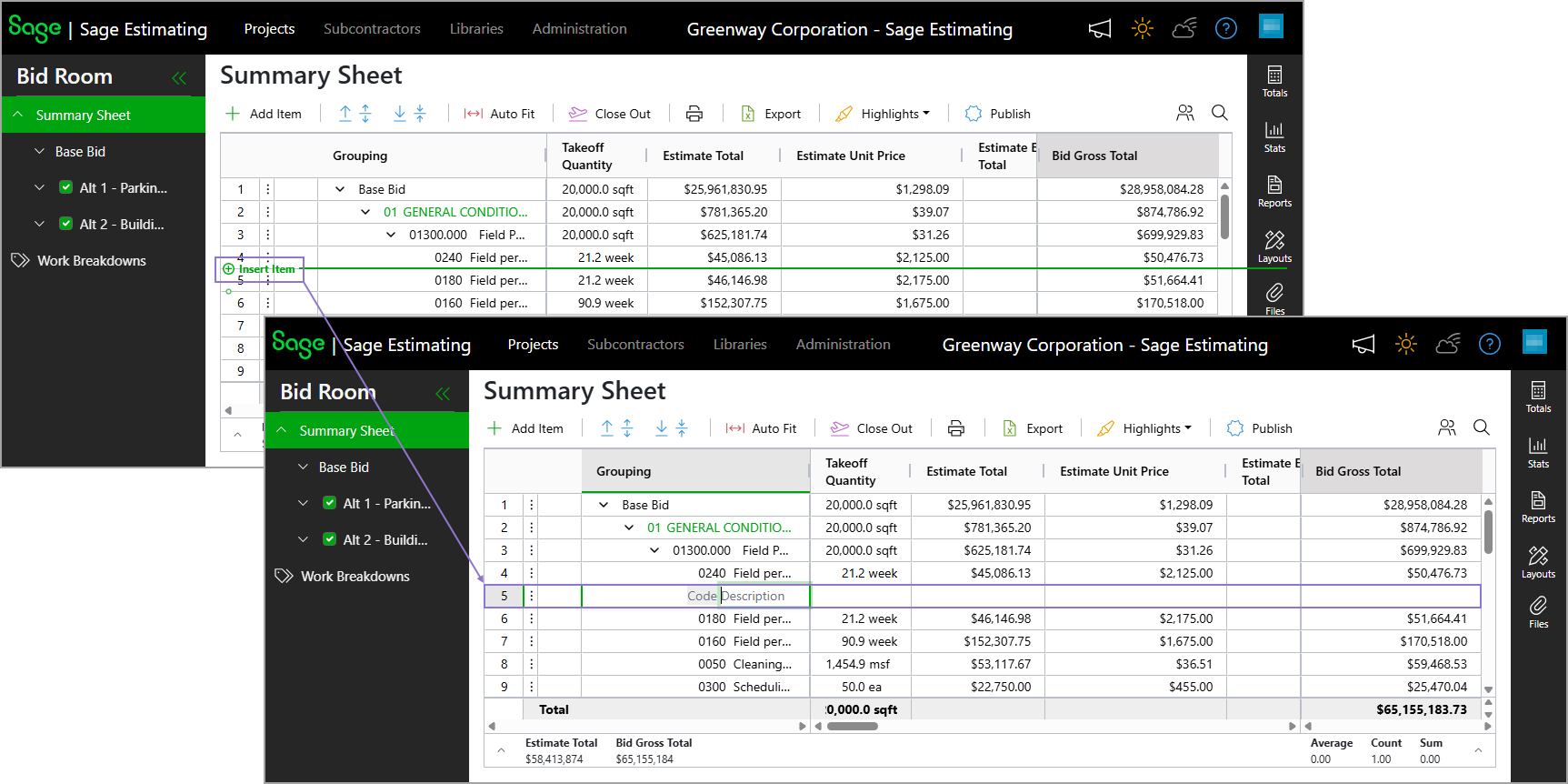
To add items, select Add Item from the toolbar and enter the required information in the dialog.
Alternatively, hover over the row number where you want the new item to be added, either above or below, and select Insert Item. Then enter the required information in the newly added row.
Use Breakout, Self Perform, and Connect actions for multiple bid package phases
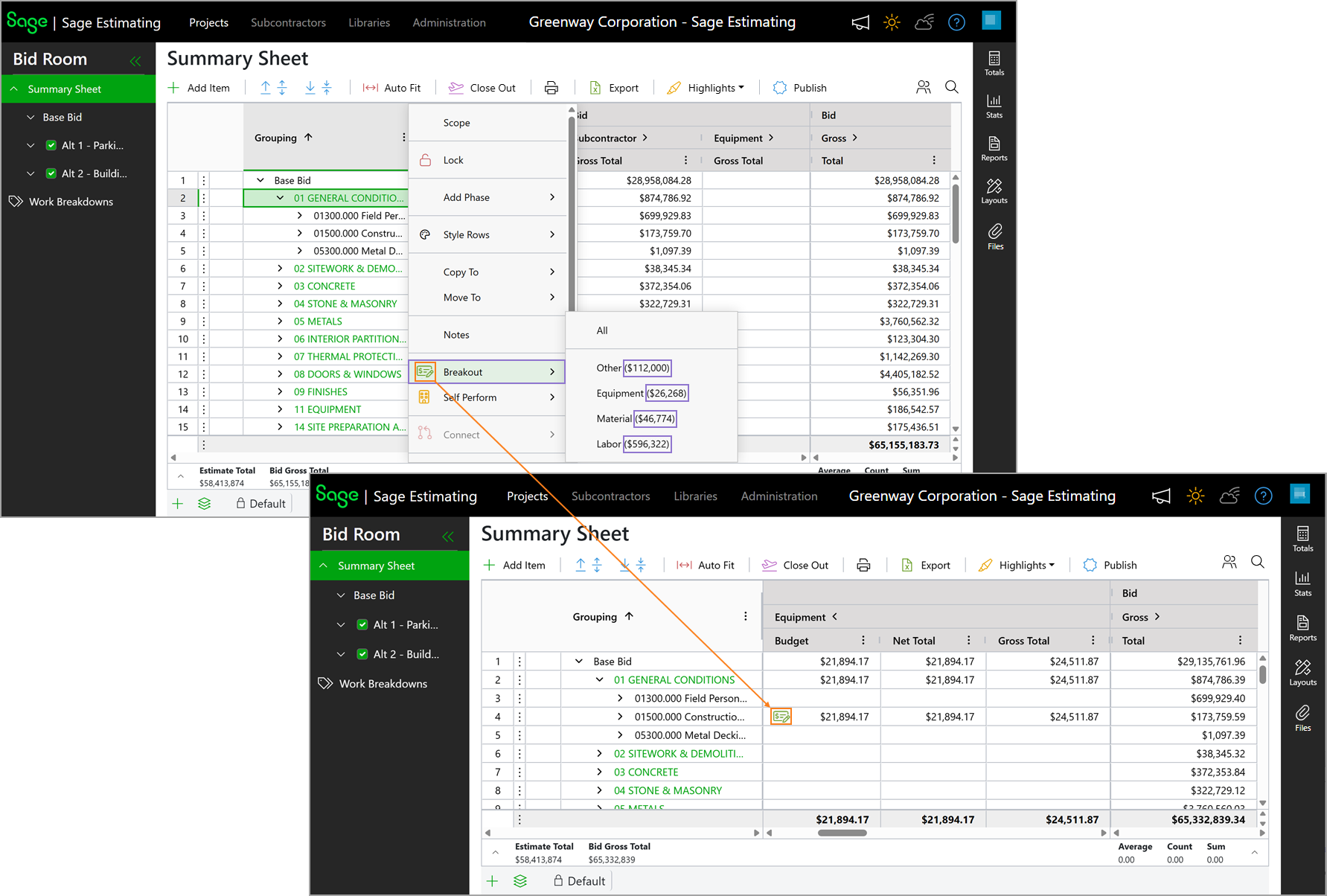
The Breakout, Self Perform, and Connect right-click actions are now available at the alternate and bid package level on the Summary Sheet, giving you more flexibility to update several bid package phases in a single action.
For example, you can right-click a bid package, select Breakout, and then choose a cost category. That cost category is broken out for all bid package phases under the selected bid package at once. The context menu now also displays the costs for each cost category, helping you make informed selections directly from the menu.
In addition, representative icons have been added for each action in the context menu. These icons then display under the Bid Budget column for the cost categories that were broken out or self-performed. You can also select the icon under the Bid Budget column to connect the cost category back to the phase budget, making it easy to manage changes directly from the Summary Sheet.
Style columns and rows
You can now customize the appearance of columns and rows on the Summary Sheet to improve readability and visual clarity. Styling options include:
-
Applying background and text colors.
-
Formatting text as bold, italic, or underlined.
-
Setting the number of decimal places for numeric values.
You can style columns and rows as follows:
-
To style a column, hover over the column header, select the ellipsis icon (
 ), and then select Style Columns.
 -
To style a row, select the ellipsis icon (
) next to the row number and then select Style Rows.By default, the styling is applied to all rows that belong to the same grouping level.
Pin columns
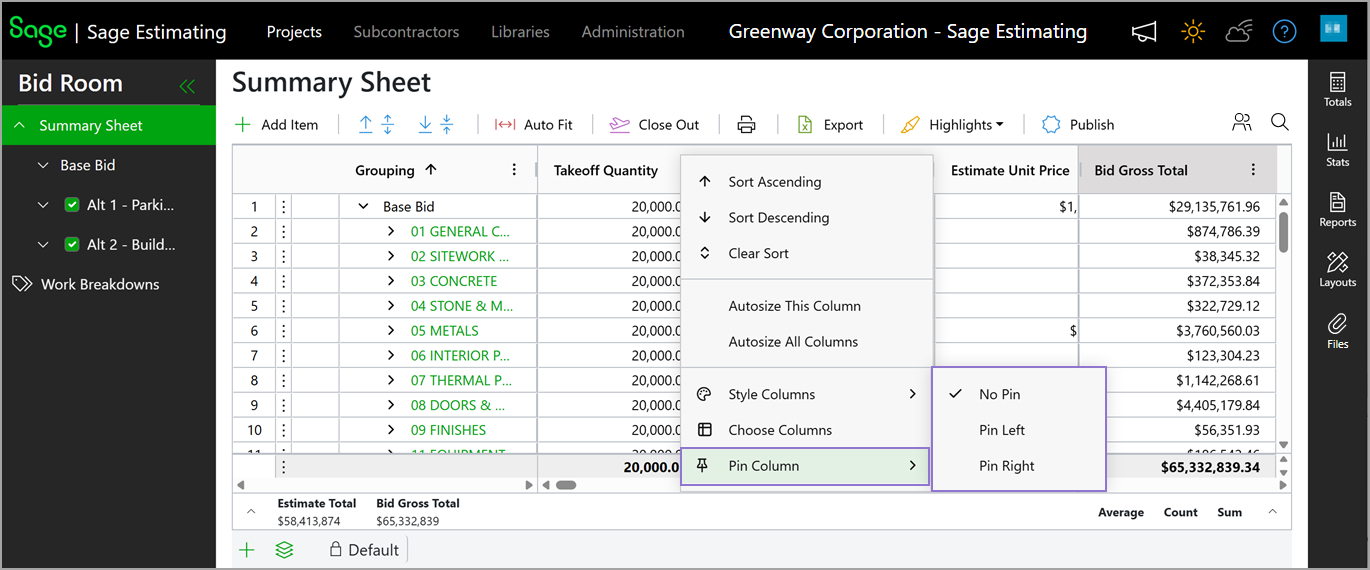
You can now pin columns to the left or right-side of the Summary Sheet to keep important data visible while scrolling.
To pin a column, hover over the column header, select the ellipsis icon (), and then select Pin Column.
Auto-fit columns
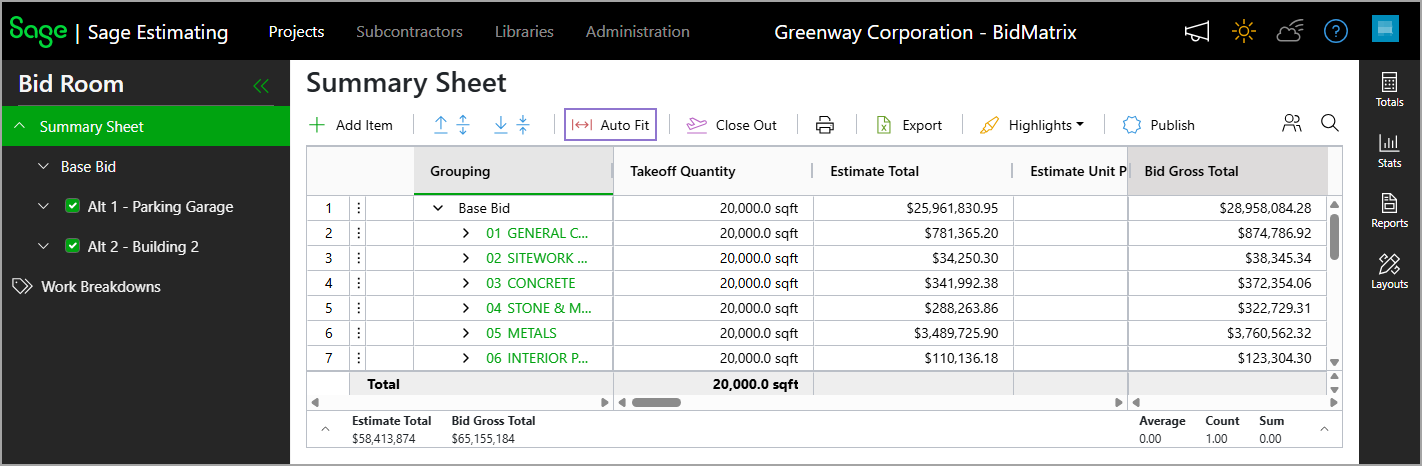
Select Auto Fit from the toolbar to adjust all column widths automatically based on their content for improved readability.
Status bar
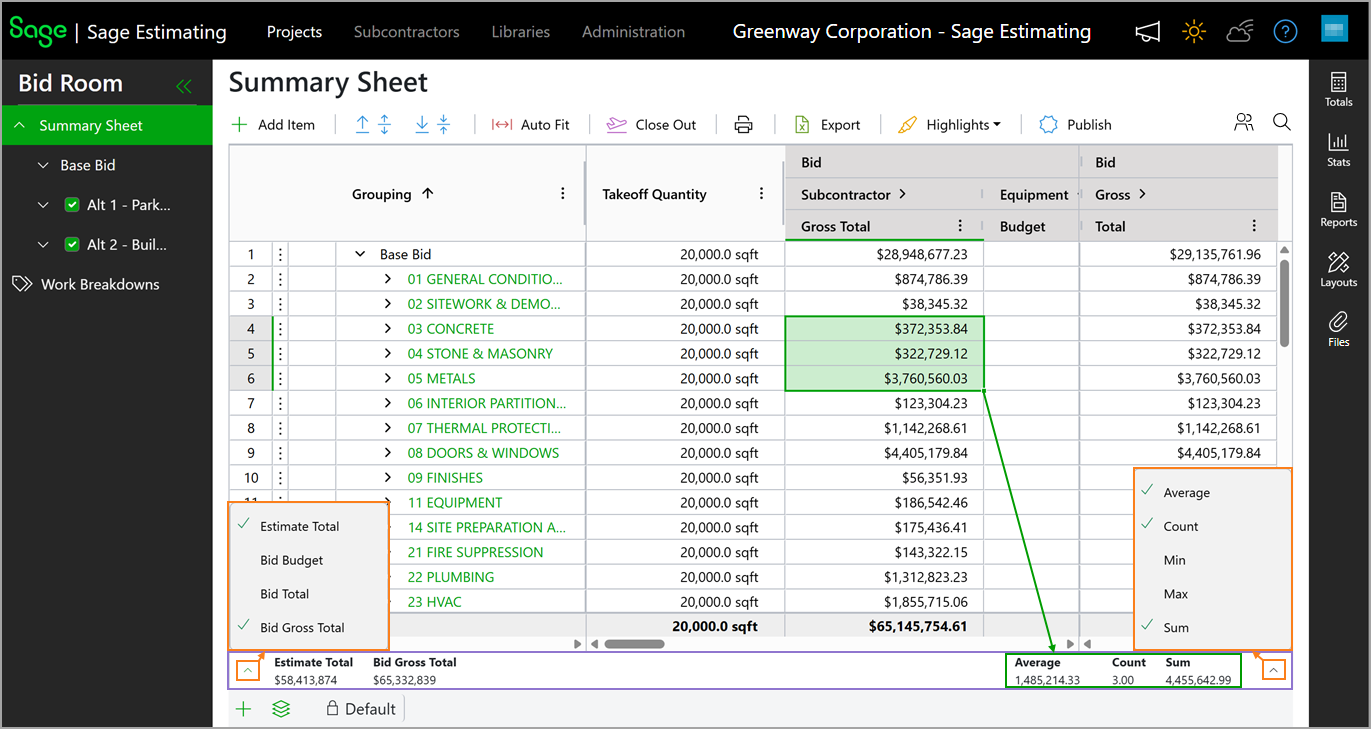
A status bar has been added to the bottom of the Summary Sheet, providing quick access to key metrics at a glance.
By default, the left side displays the estimate total and bid gross total, while the right side displays the average, count, and sum of the selected cells. Use the arrow icon on either side to hide existing fields or display additional fields.
Enhanced expand and collapse controls
You can now expand or collapse content one level at a time, in addition to expand and collapse all, making it easier to review hierarchical data.
Use the expand once icon ( ) or collapse once icon (
 ) on the toolbar for more precise navigation.
View active users
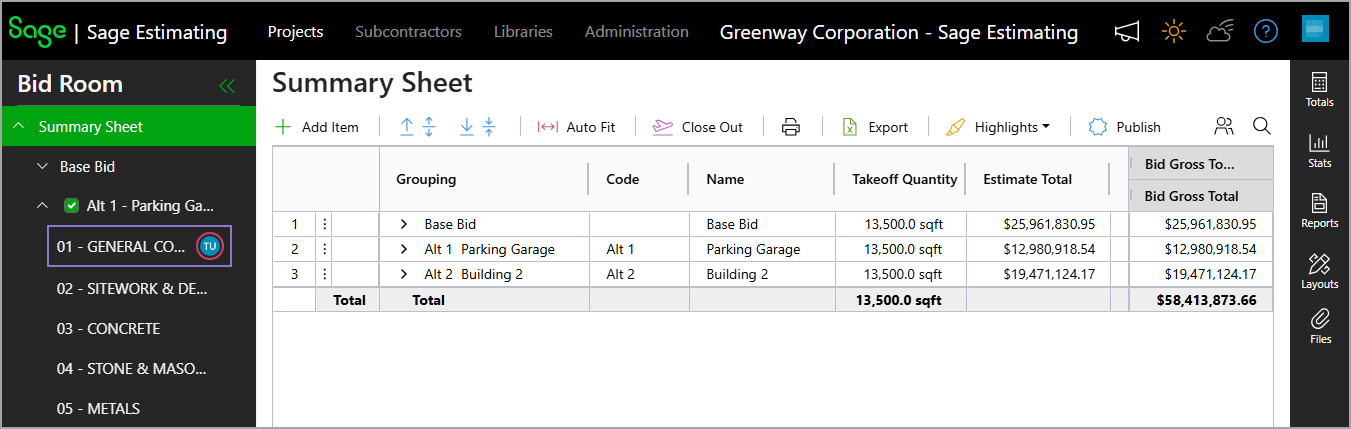
The Active Users column is no longer available on the Summary Sheet. Active users now appear only in the left‑side navigation pane.
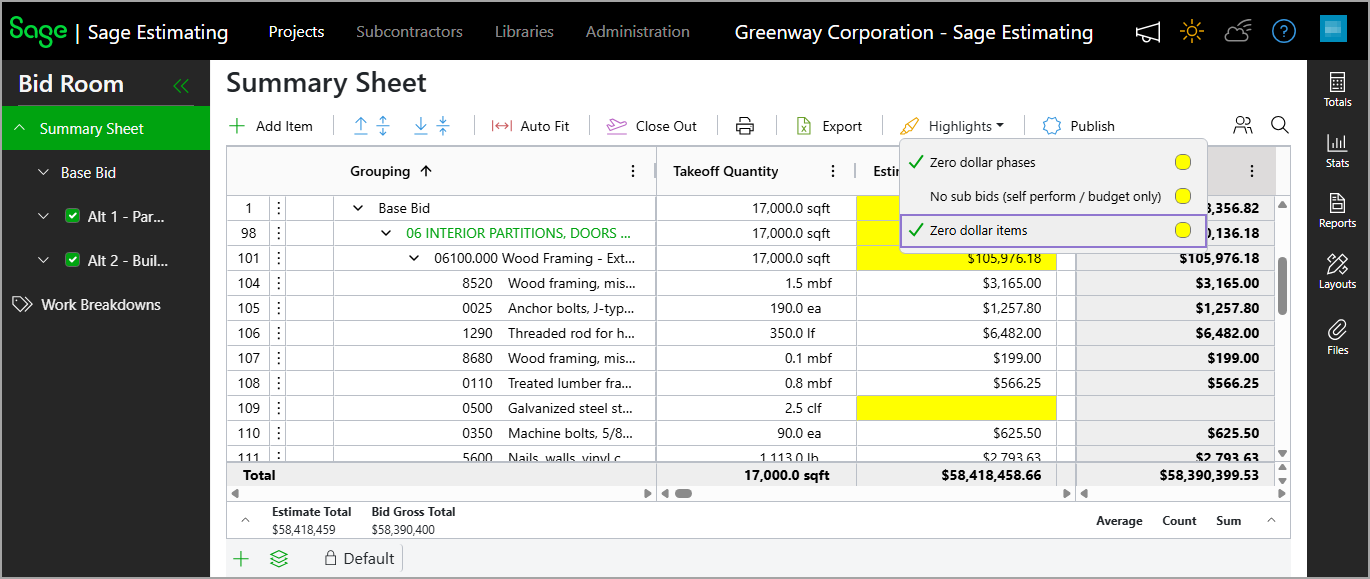
Highlight zero dollar items
On the summary sheet, you can now select Highlights > Zero dollar items to highlight items that have a zero-dollar total.