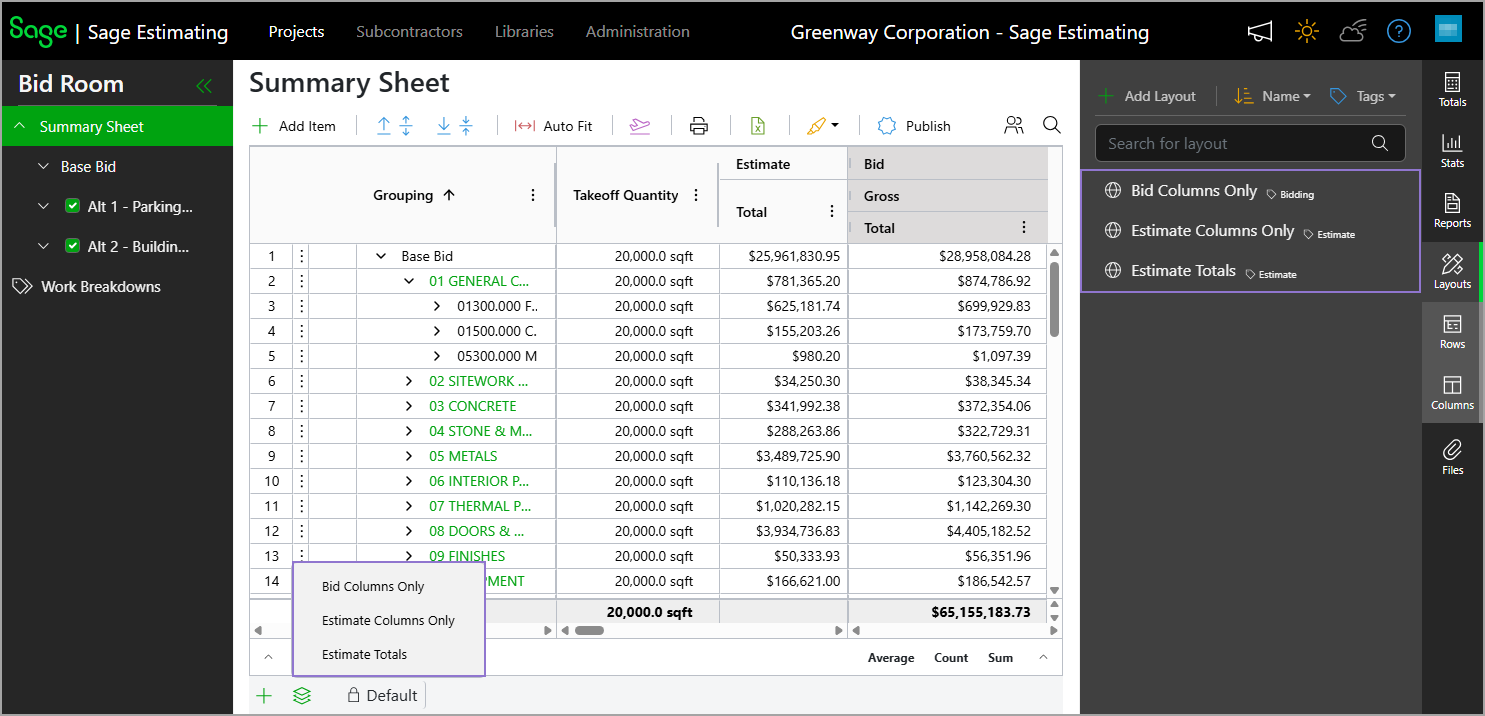
Custom Summary Sheet layouts
Related information
 Related topics
You can now create and manage custom layouts for the Summary Sheet using the new Layouts tab in the right pane. This feature gives you greater control over how your data is organized and displayed.
Details
With layouts, you can:
-
Configure row groupings based on work breakdown structures (WBS).
-
Customize columns, including visibility, grouping, order, width, decimal precision, symbols, pinning, and styling.
-
Save layouts for personal use or make them available to all users.
-
Add layouts to quick tabs for faster access.
-
Apply existing layouts from the Layouts pane, quick tabs, or layout picker.
-
Update existing layouts to reflect current Summary Sheet settings.
-
Filter and organize layouts using tags.
The Layouts tab replaces the previous Views functionality on the Summary Sheet, providing a more flexible and powerful way to customize how your data is displayed.
How it works
-
To save a custom layout, configure the Summary Sheet as needed, then select Layouts > Add Layout and complete the required information in the dialog.
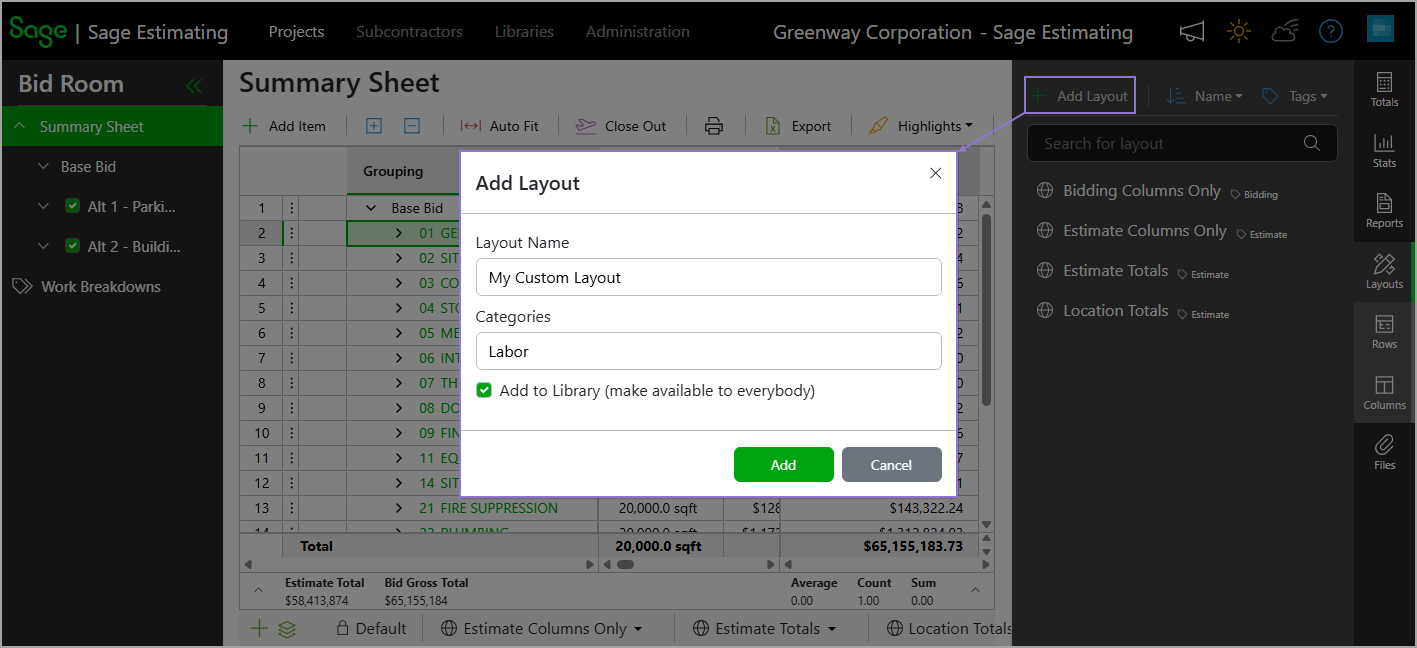
You can make layouts available to all users by selecting the Add to Library checkbox, or keep them private for your own use. Private layouts are identified on the Layouts pane by a person icon (
 ), while global layouts that are available to all users are identified by a globe icon (
 ).Changes made to the formatting of a global layout are owned by Admins and Librarians. Any saved changes apply to all users.
 -
To switch layouts, select the Layouts tab and select the appropriate layout from the list.
Alternatively, you can use the layout picker icon (
 ) at the bottom of the Summary Sheet to select a layout.