Enhancements in work breakdown structures
Related information
 Related topics
Global and project-specific work breakdown structures (WBS)
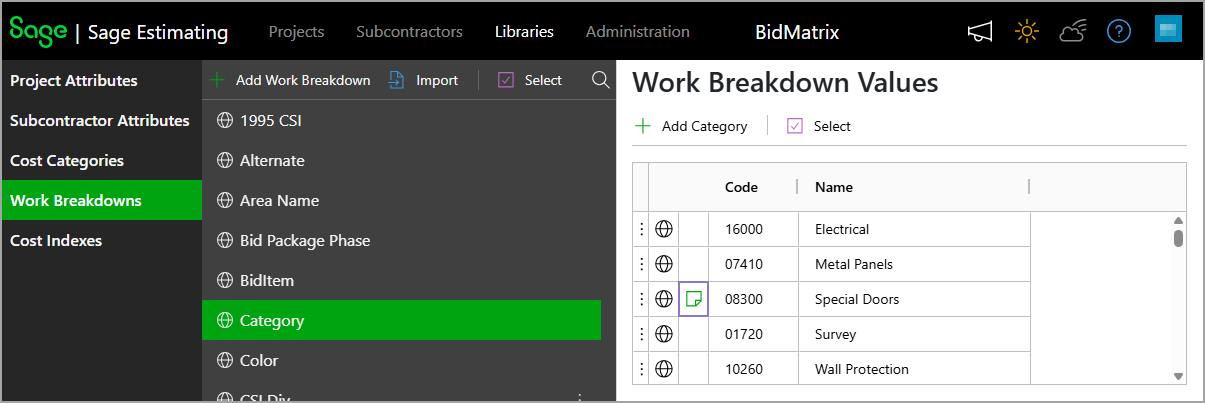
Work Breakdowns are now accessible under the new Libraries menu, in addition to being managed within individual projects. This update introduces a global WBS library that can be shared across all projects, while still supporting project-specific WBS where needed.
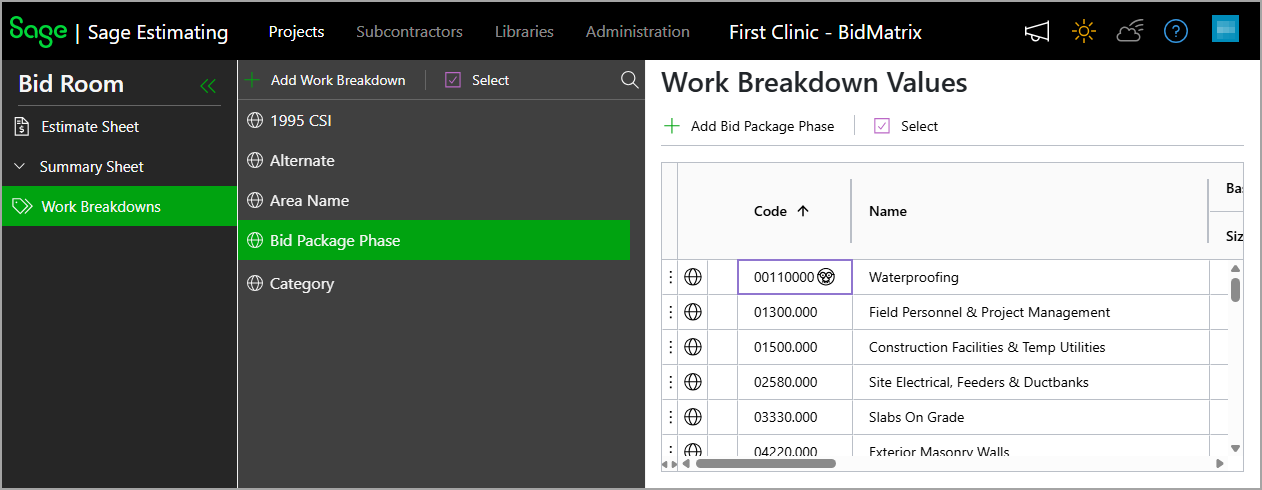
By default, changes made to work breakdowns within a specific project apply only to that project, while changes made from the Libraries menu apply globally across all projects. To help distinguish availability, an icon has been added to WBS structures and values indicating whether they’re global ( ) or project-specific (
 ).
).
Access and permissions:
-
Administrators and Librarians can view and manage WBS under Libraries > Work Breakdowns.
-
All users can manage project-specific WBS within their projects.
Import WBS
You can now easily build and expand global or project-specific Work Breakdowns by importing WBS directly from estimate files, Microsoft Word documents, or text files.
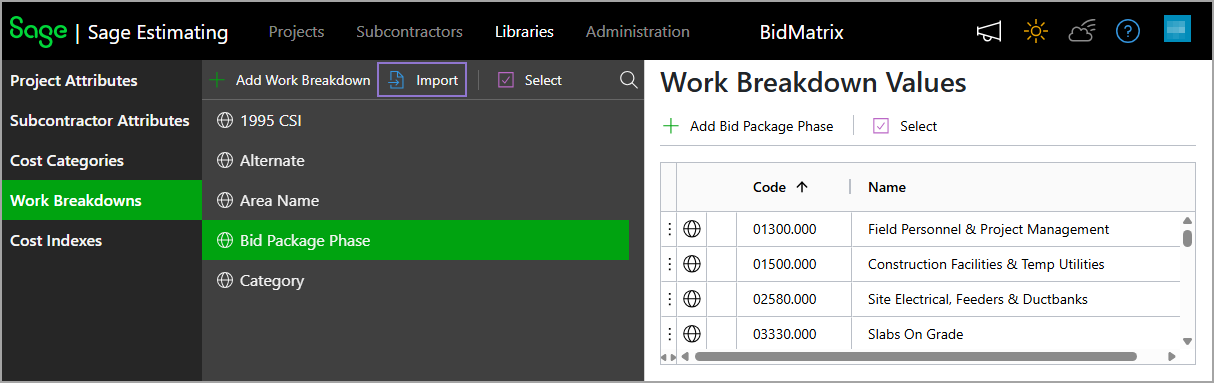
Admins and Librarians can import WBS into the global library by going to Libraries > Work Breakdowns and selecting Import.
All users can import WBS into a project by selecting + Add Work Breakdown in the project’s Work Breakdowns and selecting Import multiple Work Breakdowns from an estimate or file...
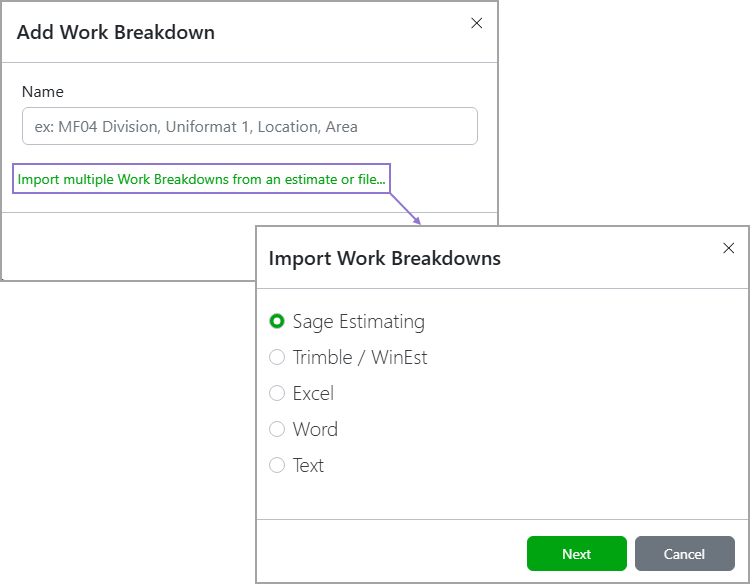
Sage Estimating (cloud), formerly Sage BidMatrix, will automatically extract the WBS from the uploaded file.
Merge WBS and values
You can now merge WBS or their individual values, making it easier to organize and manage project data.
Specifically:
-
Merge WBS: Combine two WBS into a single, consolidated structure without losing critical data.
-
Merge WBS values: Consolidate two or more similar values within a WBS to improve accuracy and reduce duplication.
To merge WBS or values, go to Work Breakdowns under the Libraries menu or within a project. Then, use the Select option in the appropriate section to select the WBS or values that you want to merge, and select Merge.
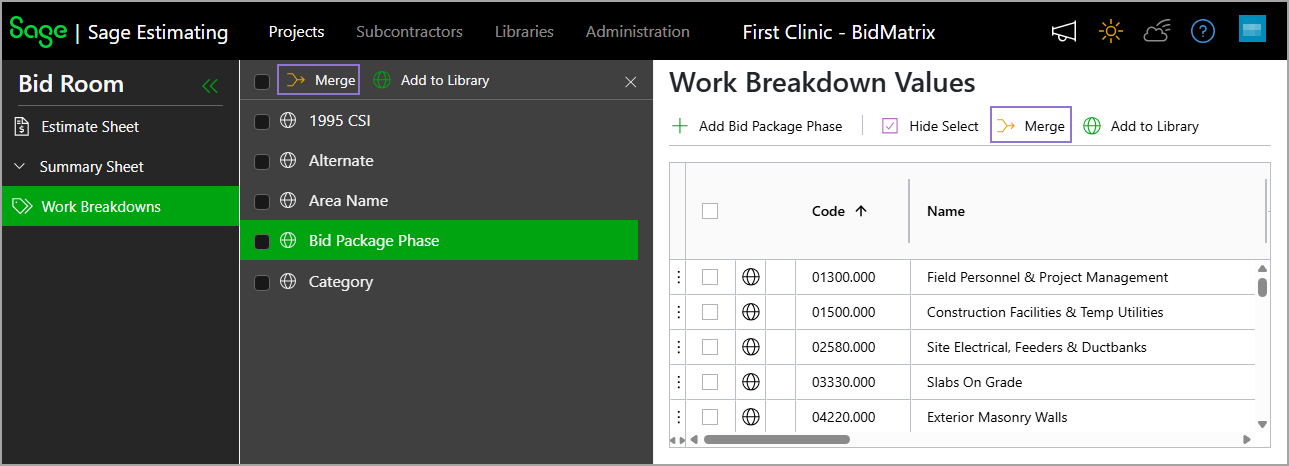
For WBS and values in Libraries, Sage Estimating (cloud) retains the original WBS or value names as metadata in the final merged WBS or value by default. To view this information, select the ellipsis icon ( ) next to the merged WBS or values, then select Edit Merged WBS... or Edit Merged WBS Items... as appropriate. In the dialog, you can remove an item from the list by selecting it and then selecting Delete.
Add project-specific aliases to WBS values
You can now change the code or name of a global WBS value within a project to create a project-specific alias. This alias applies only to that project, while the original code and name remain unchanged for other projects that use the same global WBS value. This enhancement enables project-level customization while maintaining consistency across your global WBS.
When a WBS value has an alias, a disguised face icon ( ) appears next to its code or name in the project's WBS, making it easy to identify customized entries.
Admins and Librarians can view or delete all aliases associated with a WBS value. To do this, go to Libraries > Work Breakdowns, then select the ellipsis icon () next to the relevant value and select Edit Aliases.... A list will appear with all aliases and the projects where each is used.
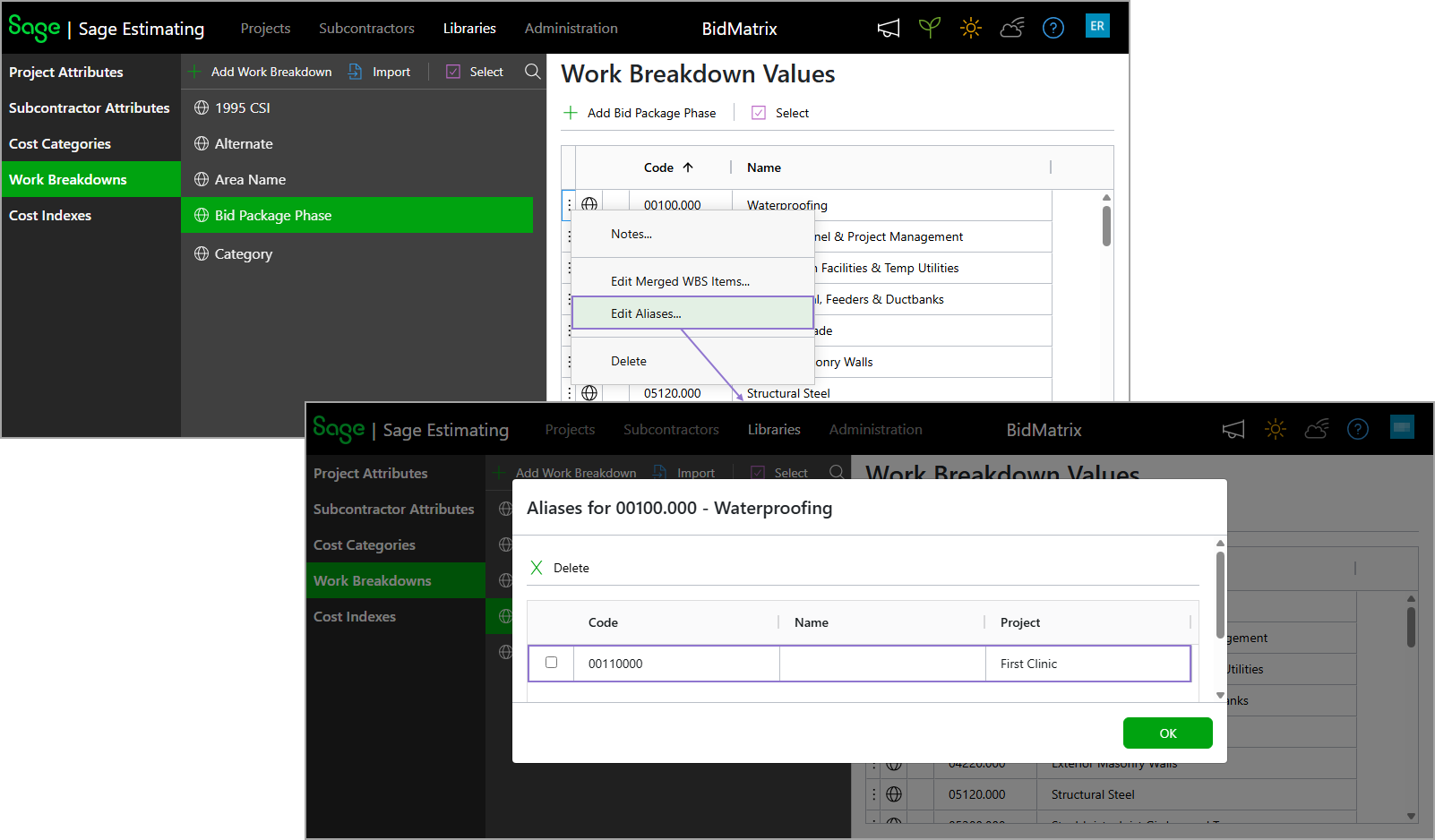
All users can revert a WBS value to its original in a project by removing the alias from the Code or Name field. This clears the alias from the project and removes it from the Aliases dialog in Libraries > Work Breakdowns.
Add project-specific WBS and values to the Libraries
You can add project-specific WBS or individual values from the project's Work Breakdowns directly to the global Work Breakdowns in the Libraries menu.
Specifically:
-
To add a project-specific WBS to the Libraries, select the ellipsis icon (
) next to the relevant WBS and select Add to Library. 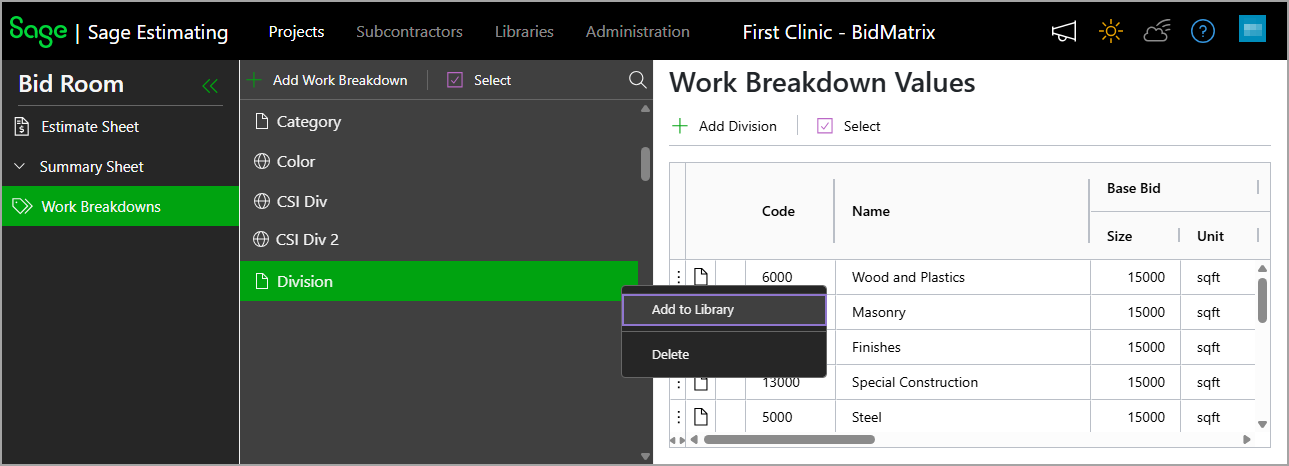
-
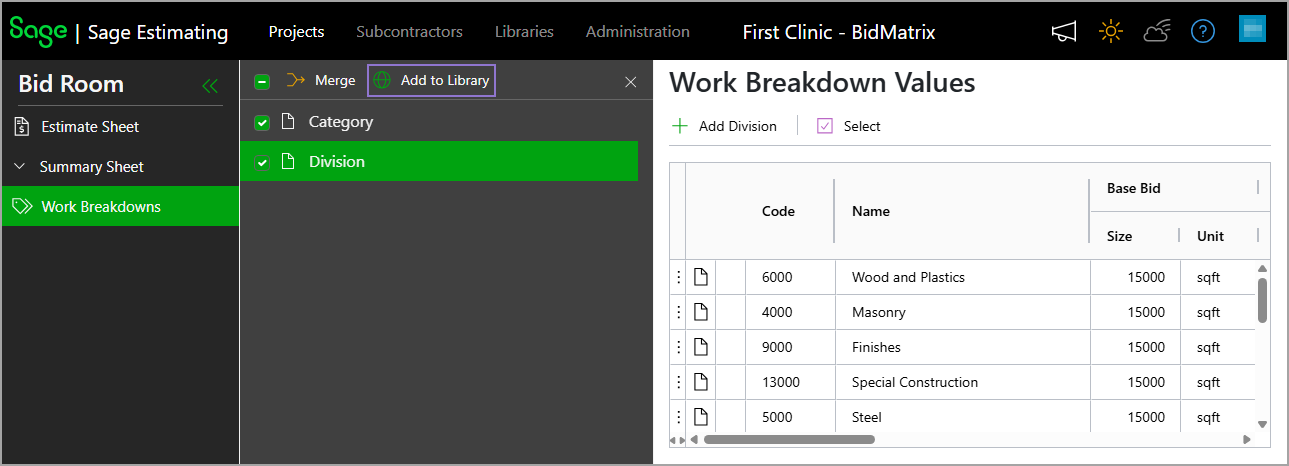
To add multiple project-specific WBS to the Libraries, use the Select option, then select one or more WBS from the list and select Add to Library.
-
To add a project-specific WBS value to Libraries, select the ellipsis icon (
) next to the relevant WBS value and select Add to Library.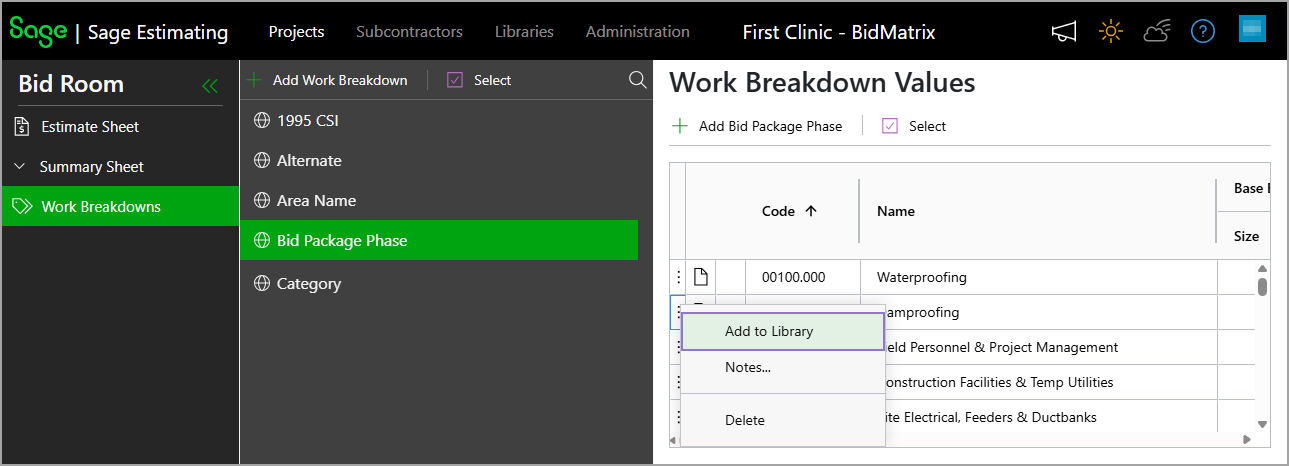
-
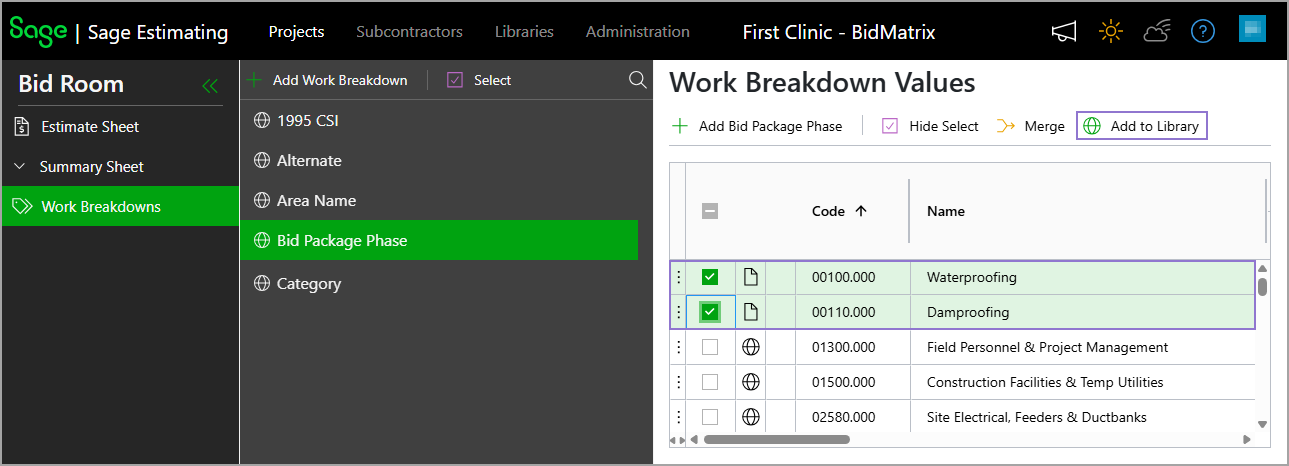
To add multiple project-specific WBS values to the Libraries, use the Select option in the Work Breakdown Values section, then select the values from the list and select Add to Library.
Make WBS values global automatically when importing estimates
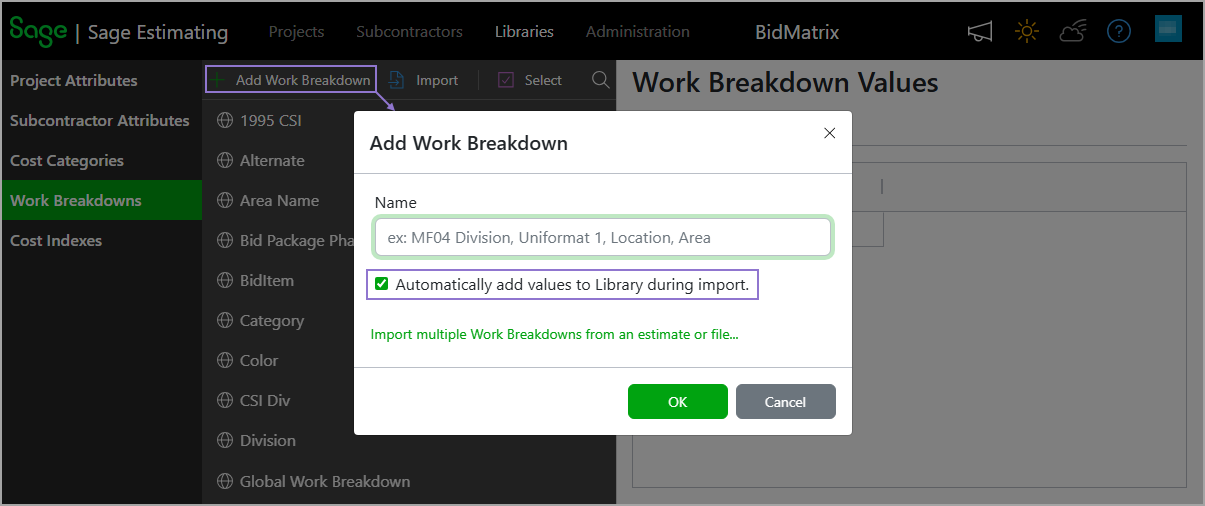
When adding a new WBS under the Libraries, Admins and Librarians can select the Automatically add values to Library during import checkbox. With this option selected, any WBS values imported from estimate files are added directly to the global library instead of remaining project-specific.
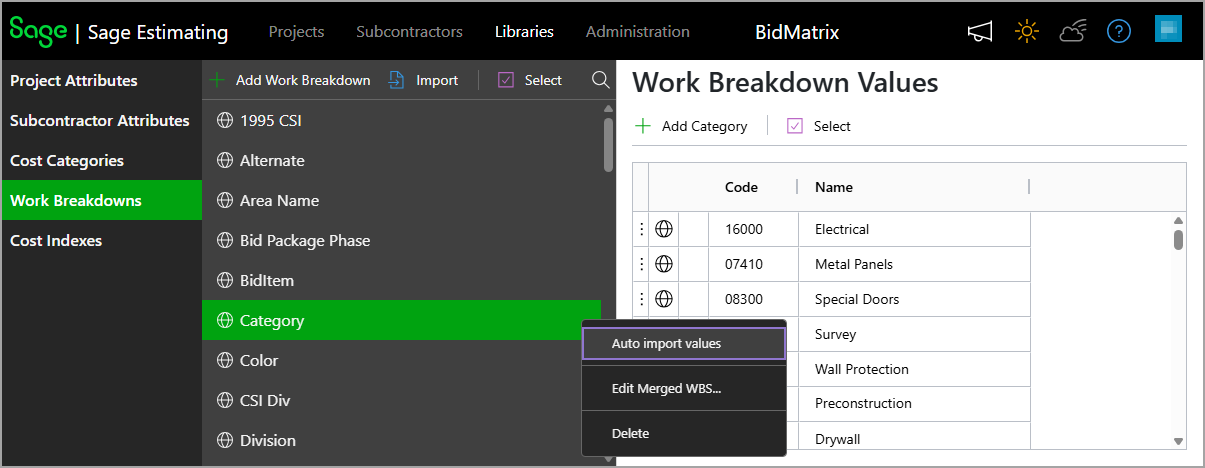
To apply this setting to an existing WBS, Admins and Librarians can select the ellipsis icon ( ) next to the WBS and select Auto import values.
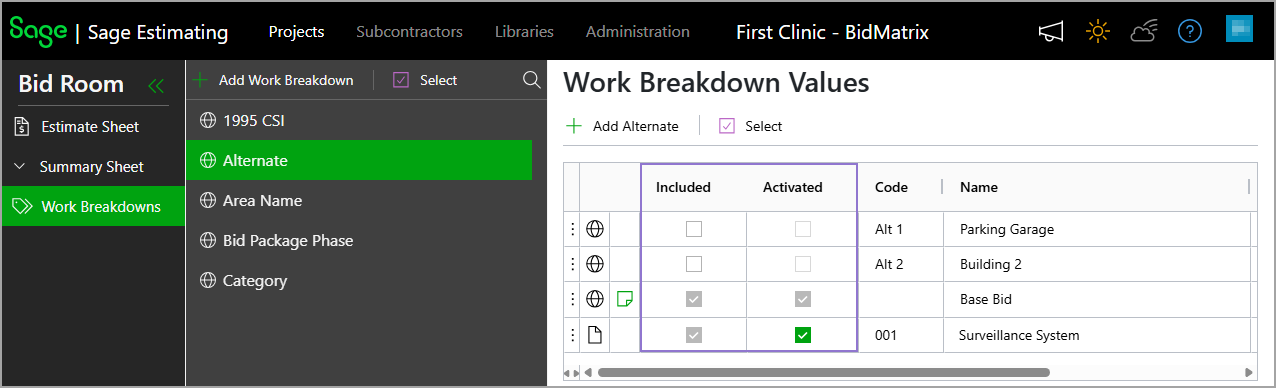
New Included and Activated columns for the Alternate WBS
We've added the Included and Activated columns to the Alternate WBS to provide clearer control and consistency when managing Alternate WBS values in projects.
Specifically:
-
When the checkbox under the Included column is selected for a value, it indicates that it's included in the project. The Base Bid and project-specific values are always included in the project. Global alternates are not included by default.
-
When the checkbox under the Activated column is selected for a value, it indicates that it's not contributing to the bid totals. The Base Bid is always activated. A value cannot be activated unless it's included in the project.
Add notes to WBS values
You can now add notes directly to WBS values to keep important details, decisions, and reminders easily accessible. To manage a WBS value's notes, in the Libraries or in the project's Work Breakdowns select the ellipsis icon () next to the relevant WBS value and select Notes.
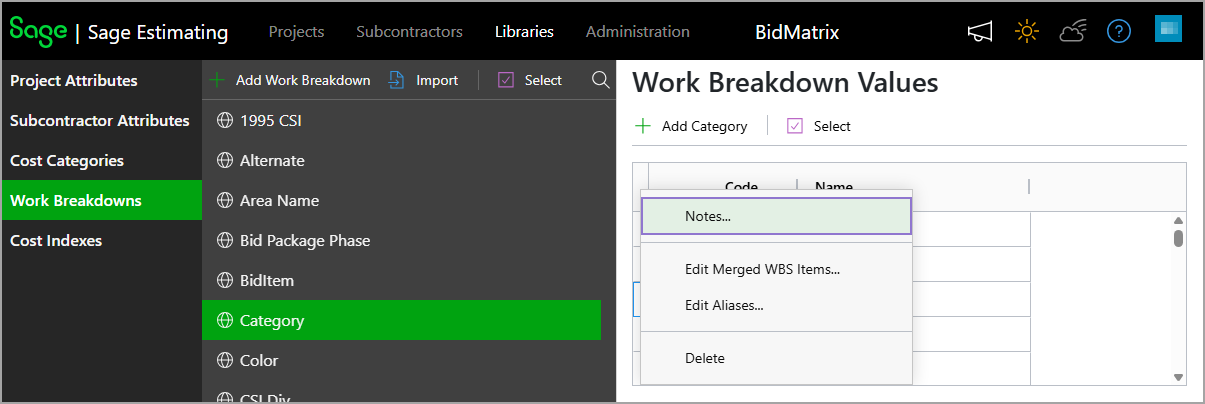
After you add a note to a WBS value, a note icon ( ) appears next to it. You can select this icon to view or edit the note.