What's new in Sage Estimating (cloud) 3.4
We've added the following enhancements in this update.
You can add bid supplements to reports
You can use Sage Estimating (cloud), formerly Sage BidMatrix, to “level” or supplement bids using three different methods:
-
You can supplement bids for missing item scope.
-
You can supplement a bid from Clarifications.
-
You can simply add a general supplement to a subcontractor’s bid.
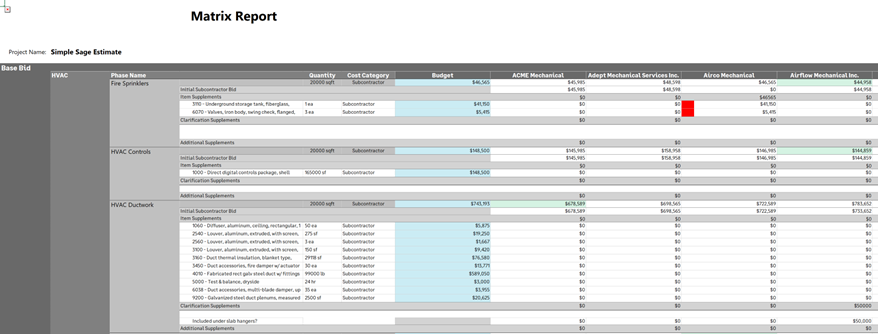
With this release, you can now report on the individual supplements that were included in each bid package. We updated the Matrix Report with Supplements to show individual bid package supplements. For the best formatting of the report, choose Excel as the output option.
Example of the Matrix Report with Supplements
You can customize the colors used to highlight incomplete bids and budgets
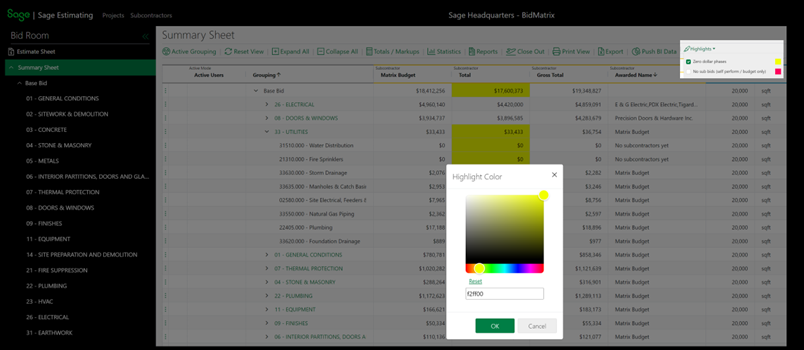
You can highlight both zero-dollar phases (phases that do not have either a budget or a subcontractor bid) and phases that do not have a subcontractor bid (phases that have a budget, but do not have a subcontractor bid). The default color for highlighting both above examples is yellow, but you can override the default and select a different color for each highlight type.
You select Highlights on the Bid Summary toolbar to change the default highlight colors.
You can sort all projects by the most recently edited projects
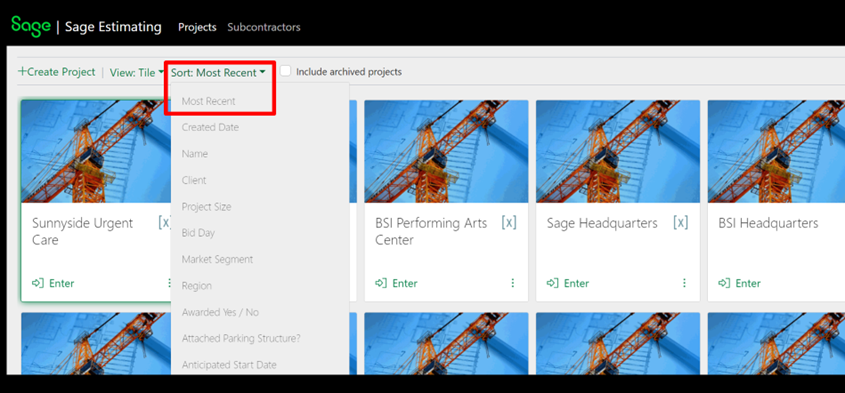
You can now quickly sort all projects on the Project page using the new Sort Most Recent option, available on the Sort menu.
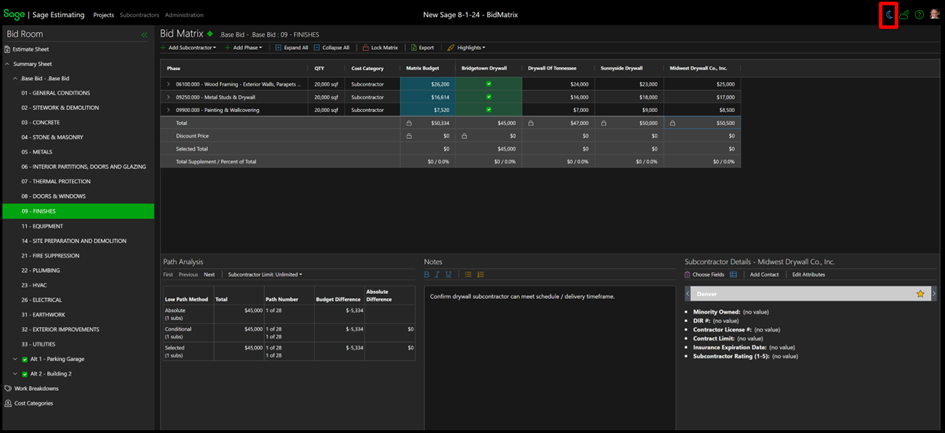
You can view Sage Estimating (cloud) in “dark mode”
Sage Estimating (cloud) now provides an option to view the application in dark mode, which can help you if you have a visual impairment or if you’re working in a very bright environment. Dark mode can reduce screen glare and increase contrast.
To turn on dark mode, select the sun icon in the upper right corner of any screen in the Sage Estimating (cloud) application.
To turn off dark mode, select the crescent moon icon in the upper right corner of any screen in the Sage Estimating (cloud) application.