Add project statistics
You can set up as many statistics as you need for each project. For example, you can use Statistics to track the total dollars awarded to subcontractors that match statistical configurations that you create. One of the most common uses for Statistics is for tracking and meeting MBE (Minority Business Enterprise) requirements on a project.
Sage Estimating (cloud), formerly Sage BidMatrix, uses subcontractor attributes to calculate statistics. You configure the statistics using subcontractor Yes/No and subcontractor multiple choice attributes.
Configure a new statistic
-
Go to Projects.
-
On the Projects page, open the project by selecting Enter on the project tile or the enter icon (
 ) next to the project row.
 -
On the Project page, select Stats from the right pane.
-
Select Configure at the top of the pane.
-
In the dialog, select Add New Statistic.
-
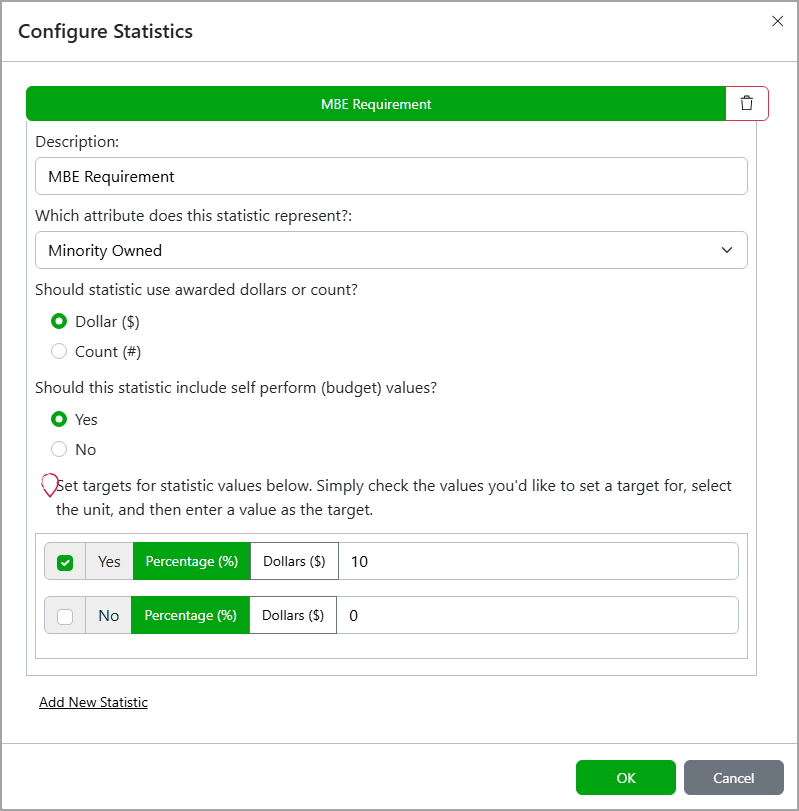
In the Configure Statistics dialog, specify the following fields:
-
Enter a Description for the statistic.
-
Select the subcontractor attribute from the dropdown to use as the basis of your statistic.
Only Yes/No and multiple choice attributes are available for use in statistics. -
For Should statistic use awarded dollars or count?, select one of the following options:
-
Dollar: The statistic you’re tracking is based on total dollars awarded to subcontractors that match the attribute, Yes or No value.
-
Count: The statistic you’re tracking is based on a count, that's the number of subcontractors that match the Yes or No value.
Dollar-based statistics are based on the gross total of the entire bid. -
-
-
For Should this statistic include self-perform (budget) values?, select Yes to include budgeted self-perform amounts in the gross total.
-
Select the statistic values that you want to track and enter the corresponding percentage or dollar target in the available field.
For example, an MBE requirement might have a target of 10% of the gross total. As you select subcontractors' bids to perform work on the project, the statistics are updated in real time.
View project statistics
-
Go to Projects.
-
On the Projects page, open the project by selecting Enter on the project tile or the enter icon (
) next to the project row. -
On the Project page, select Stats from the right pane.
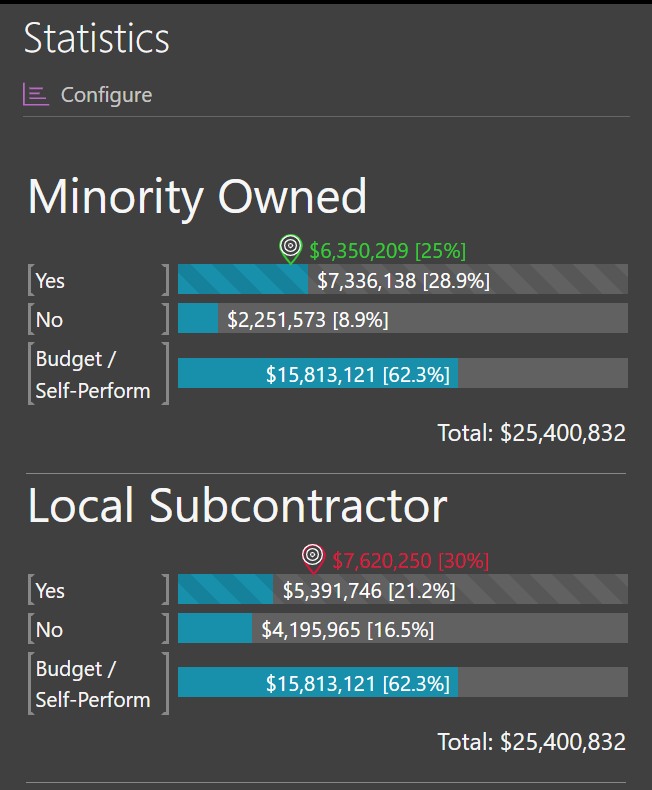
If a requirement is met, the target icon and value are shown in green. If it's not met, they’re shown in red.
For example, if the goal is to award 25%, corresponding to $6,350,209 of the gross total, to MBEs, and the actual amount awarded is $7,336,138, the requirement is met. In this case, the target icon and value are shown in green.